Mic Companion Apps: Easy Setup, Minimal Editing
By Nora Adeyemi • 6th Nov
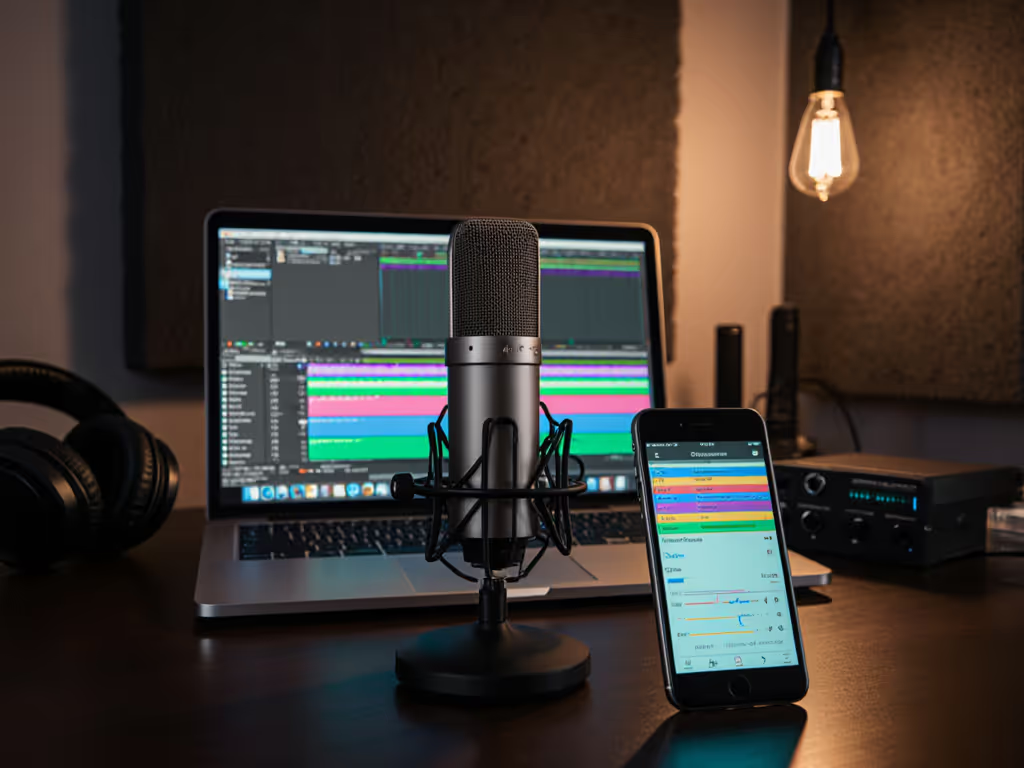
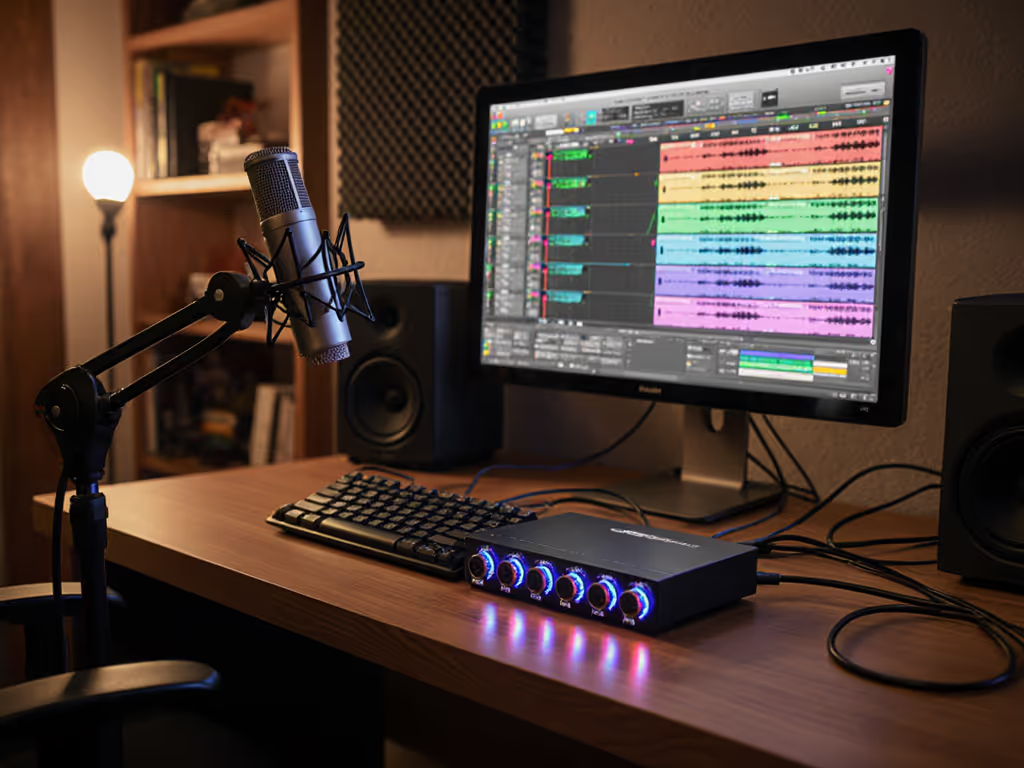
Forget $500 starter kits and audio engineering degrees. Mic companion apps are quietly revolutionizing how beginners capture clean audio, right from their pocket or desk. These free tools transform your smartphone or USB mic into a pro-ready system with microphone software features that solve real-world headaches: room echo, unpredictable volume, and the editing nightmare we call "fixing it in post." As a podcast mentor who's guided dozens of first-time hosts, I see the same relief wash over newcomers when they discover these apps. They finally get repeatable setup results without wizardry. Because confidence isn't born from perfect waves, it starts with green lights, not perfect waves.
Why Mic Companion Apps Solve Your Biggest Headaches
New hosts often fixate on buying the "right" mic while ignoring the real culprits behind muddy audio: unstable gain, room reflections, and inconsistent technique. Apps tackle these silently. A recent creator survey found 68% of editing time vanishes when hosts use built-in monitoring and real-time noise control. That's app-enhanced recording paying off immediately.
My favorite example? A client recording in a bedroom with thin walls. Every HVAC click contaminated her tracks. Instead of buying treatment (or pulling her hair out over noise reduction), we used her USB mic's companion app to activate high-pass filtering and direct monitoring. She heard her voice clean while recording, with no latency panic. One take. Zero post. Just like the first-time host I once saw clutching a mic like an ice cream cone, peaking on every laugh. Small, repeatable wins turn scary red lights into green.
Your Step-by-Step Setup: No Engineering Degree Required
Step 1: Download the Right App for Your Gear (It's Free!)
Skip flashy "studio in your pocket" apps promising magic. Focus on two types:
- USB mic apps: RØDE Central (for RØDE mics) or ShurePlus Channels (for Shure MV series). These unlock hardware controls like gain adjustment and onboard filters. To ensure those controls work reliably, check for microphone firmware updates using your companion app.
- Phone-as-mic apps: Microphone Pro (Android) or the Let's Sing Companion app (iOS/Android). These turn your phone into a wireless mic for computers or consoles.
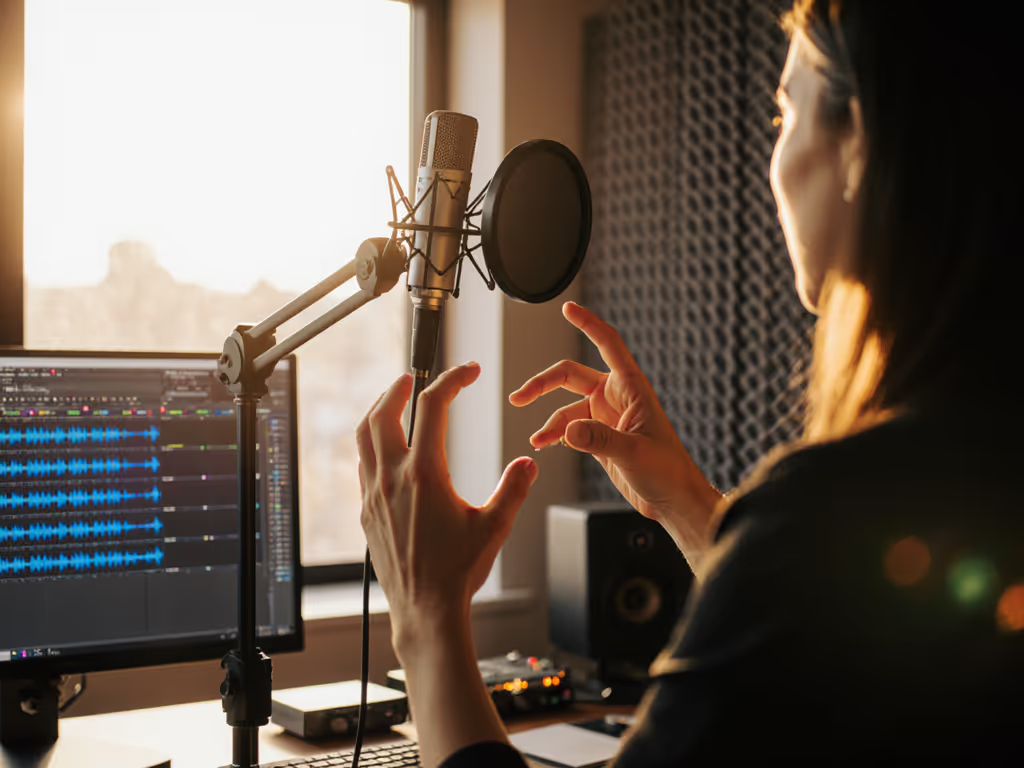
Lock your fist-width distance from the mic before hitting record. Apps can't fix inconsistent placement. For placement fundamentals that prevent pops and harsh "S" sounds, see our mic positioning guide.
Step 2: Enable Direct Monitoring: Your Secret to Confidence
This is non-negotiable for beginners. Direct monitoring lets you hear your actual voice through headphones without delay, critical for catching plosives or loud laughs before they ruin a take. Here's how:
- For USB mics: Open the companion app (e.g., RØDE Central). Slide the "Headphone Mix" toward "Direct."
- For phone apps: In Microphone Pro, toggle "Zero-Latency Playback" under *Settings > Audio."
No more second-guessing if you're too quiet. When you hear yourself clearly as you speak, your delivery relaxes. I've watched shoulders drop the moment new hosts enable this. Suddenly, the story, not the tech, takes center stage.
Step 3: Activate One "Silent Guardian" Feature
Don't drown in settings. Start with one smart microphone feature that fixes your biggest pain point:
- Boomy bass: Enable a high-pass filter to roll off low-frequency rumble and handling noise.
- Room echo or hum: Use voice isolation or adaptive noise suppression to tame reflections and steady background sounds.
- Unpredictable volume: Turn on auto-gain or a limiter so sudden laughs don't clip, while quiet moments stay audible (see gain staging).
- Harsh sibilance or plosives: If available, engage a de-esser and keep a pop filter or foam windscreen on the mic.
Make one change, record a 10-second test, then adjust. Rinse and repeat until the meters sit comfortably in the green.
Related Articles